Booking settings & rules
Online booking and the internal calendar share the same availability engine. Configuration lives under Settings. The Calendar Settings tab requires booking permission. Clinic-wide subtabs also require permission to manage clinic settings. Clinic's Rooms is its own tab.
Do the steps in this order. Later steps read data from the earlier ones.
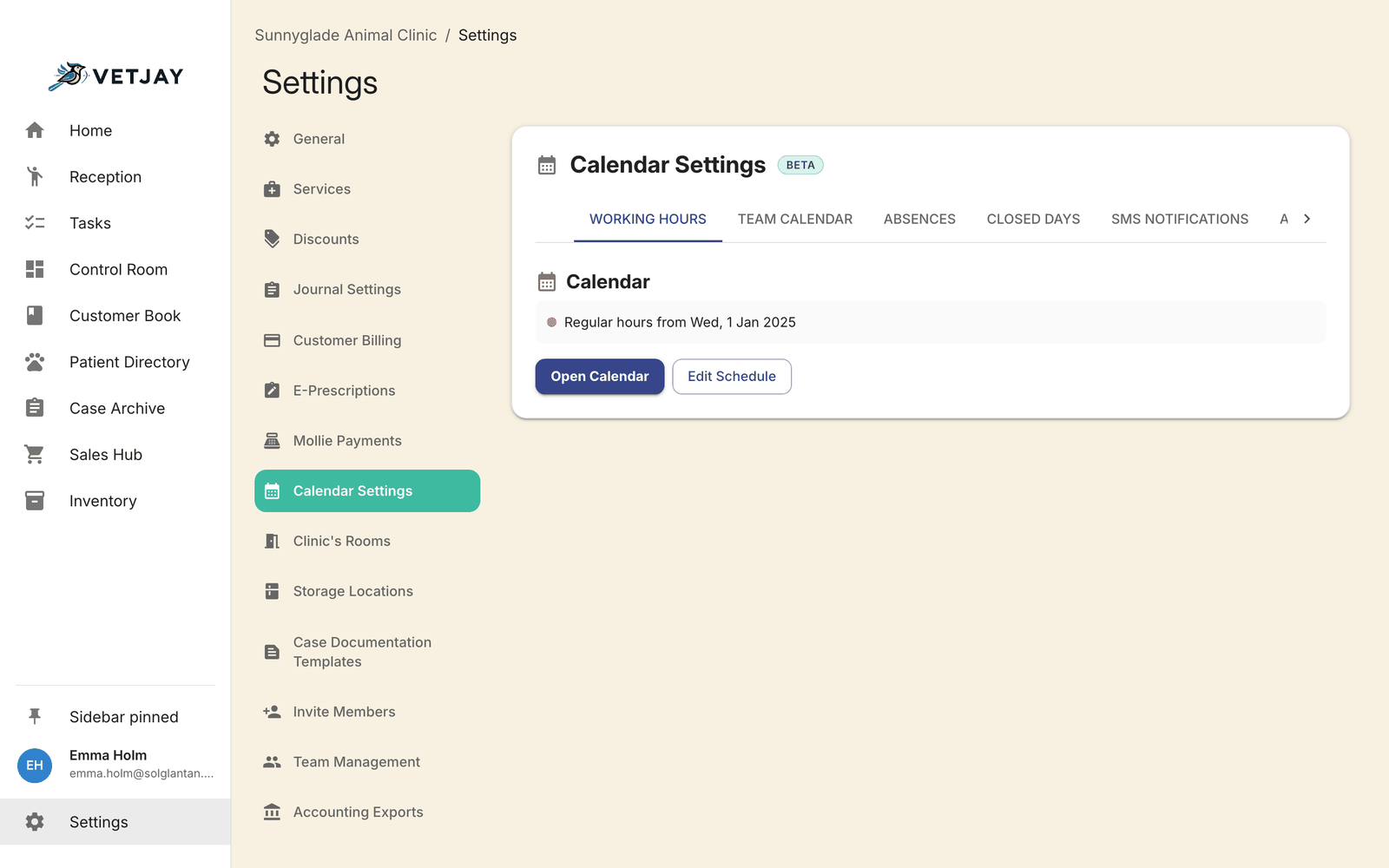
1. Clinic schedule
Tab: Working Hours. The card shows the clinic's regular hours with the buttons Open Calendar and Edit Schedule.
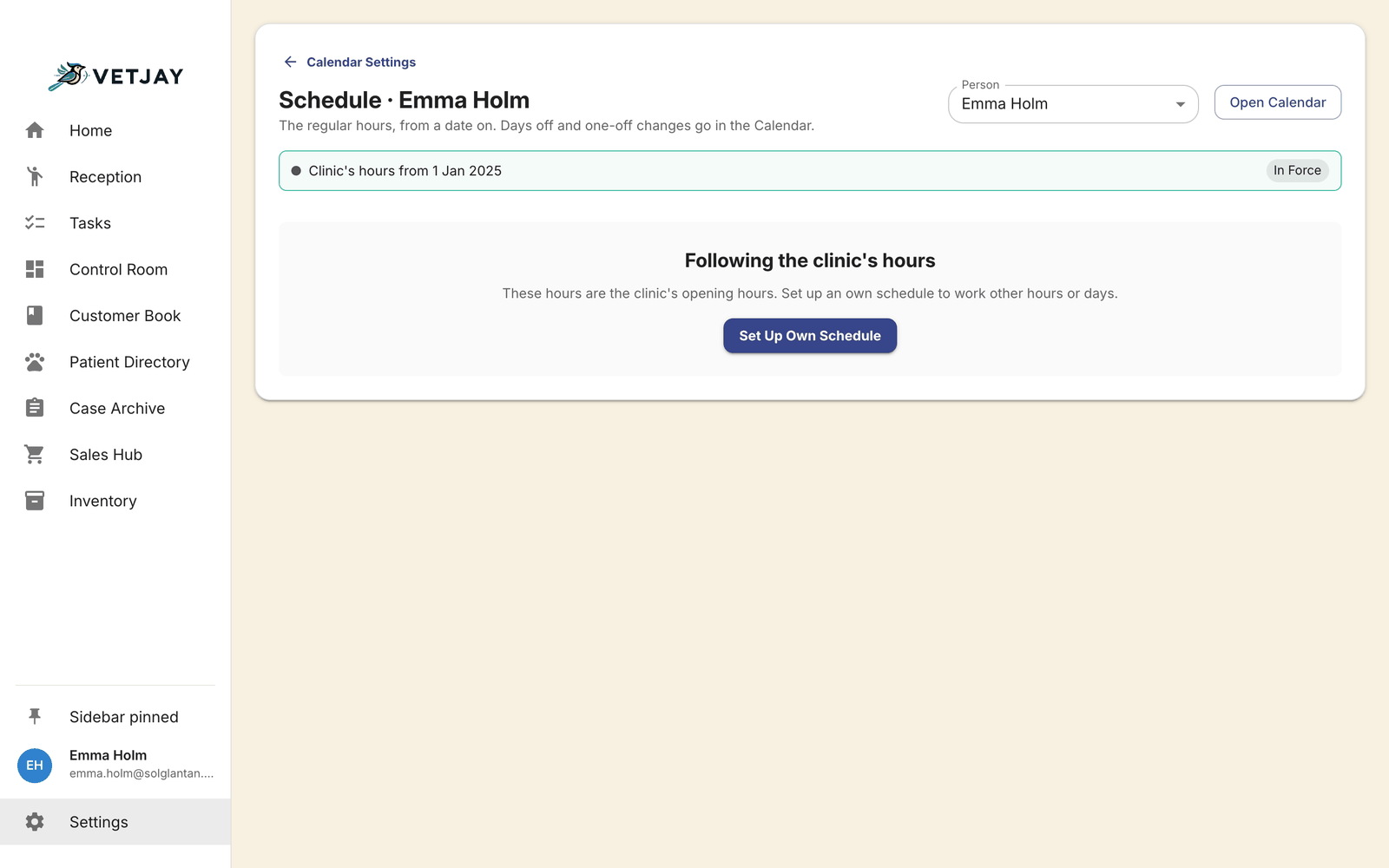
Working hours are split across two pages:
- Schedule (Edit Schedule): the regular hours that repeat. Draw the hours on the week grid. A schedule applies from a date, so you can plan a New schedule ahead (summer hours, say) without changing today's. A schedule can be a rotation of 1–52 weeks, and day rules cover patterns such as every other Saturday.
- Calendar (Open Calendar): one-off changes on dates. Click a day to open its week and drag on the grid. Changed days show Specific hours. The day's menu (⋮) has Close the Clinic This Day, No Opening Hours This Day, Reopen the Clinic This Day and Back to Regular Hours.
Time is interpreted in the clinic time zone (default Europe/Stockholm).
2. Personal schedules and absences
Tab: Team Calendar for managers (choose a staff member under Person), otherwise My Calendar. Each person has the same two pages.
- A person without their own schedule follows the clinic's hours.
- Their own schedule replaces the clinic's hours for that person, even outside clinic opening hours.
- Specific hours on a date win over both the person's and the clinic's schedule. This is how you open extra hours for online booking on a single day.
- Absences (own tab, or Mark as Away in the calendar) are subtracted last, whatever the schedule.
Order, highest first: the clinic's closed day, the person's specific hours, the person's schedule, the clinic's specific hours, the clinic's schedule. Absences are then subtracted.
No opening hours means the clinic does not open, but staff with their own schedule keep working and stay bookable. Close the clinic stops everyone, online booking included.
3. Rooms
Tab: Clinic's Rooms.
| Field | Meaning |
|---|---|
| Active | Only active rooms can be assigned |
| Capacity | Concurrent visits. A missing value counts as 1 |
| Cleaning buffer | Minutes added after the visit end while the room counts as occupied |
| Appointment types | Which types the room may take. A room with no link takes no visits |
A type with Requires Room gets no public slot unless an active room is linked and has free capacity.
4. Appointment types
Tab: Appointment Types. Identity is set in Add Appointment Type. Behaviour is set under Type Defaults.
Default duration is the visit length and the step between candidate times. 45 minutes in the window 08:00–17:00 yields 08:00, 08:45, 09:30, and so on.
Team requirement:
- Specific roles (AND): every listed role must be filled with its count, and one role is the lead. The engine takes a free lead and then picks support staff.
- Any of these (OR): one of the role sets is enough. The person who matches becomes the lead.
Private is an internal block (lunch, time off). A private type gets no buffer expansion. At most one private type per clinic.
Deleting an appointment type clears existing visits of that type, and linked online services are deleted. Confirmation is done by typing the type name.
5. My Calendar
Tab: My Calendar (Beta). The first time, the user runs Set up my calendar. That adds the clinic's existing species and appointment types. Types created later are switched on by hand. Setup does not turn on Bookable online.
| Setting | Effect |
|---|---|
| Appointment types I work with | Without a row the person cannot be lead or support |
| Species I work with | Without a row for the species the person cannot be assigned |
| Bookable online | Must be on to appear in public booking. Internal booking ignores the flag. Default is off |
| Buffer between appointments | Whole minutes, default 0 |
The buffer is applied on both sides of a clinical visit: a visit ending at 13:00 with 15 minutes blocks until 13:15 and also 15 minutes before the start. A private block (lunch) blocks only its own time, with no buffer before or after.
There is no cap on visits per day. A person cannot overlap another active visit, with the buffer above.
6. Closed days
Tab: Closed Days. A row is a date and an optional reason. Source is Manual or Bank Holiday. Import Bank Holidays fills Swedish public holidays.
A closed day stops the whole day, even if someone has personal working hours. Leave for one person is a personal day off or a private block, not a clinic closure.
7. Booking rules
Booking rules limit an appointment type to certain times, for example vaccinations only 08–10. A rule can be before, after or between two times. The whole visit must fit, not only the start time. Several active rules for the same type must all allow the slot.
8. Online booking
Tab: Online Booking (Beta).
| Setting | Function |
|---|---|
| Enable online booking | Master switch per clinic. Off returns the error that online booking is off |
| Minimum lead time (minutes) | A start time equal to or earlier than now plus the lead time is skipped. 0 does not release a slot that starts exactly now |
| Show all available slots per lead | On: the customer sees one slot per lead. Off: the same clock time is merged and the engine picks the lead |
| Allow triage requests | The callback card is shown in the customer flow |
| Require customer address | The customer must give address, postal code, city and country when booking or requesting a callback. Off by default. See Require customer address |
| Animal types accepted online | The list applies to the whole clinic, not one service |
| Add online booking | A public name and description linked to an internal appointment type. The same type can have several public names |
| Your booking link | {base}/booking?company={slug}&clinic={clinic} — Copy link and Try it |
| Public brand colours | At the bottom of the same tab. They apply to the company's public page |
Require customer address
Turn on Require customer address if you want a full address at the time of the online booking, for example for invoicing or a service area. The switch needs online booking to be on and booking permission.
- A new customer fills in address, postal code, city and country when entering the animal's details.
- A returning customer who already has a complete address in VetJay is not asked again. If something is missing, Add missing address details shows in the last step. Details already on file do not change.
- It applies to both bookings and triage requests.
- The address the customer gives becomes the invoice address, unless the customer already has one.
Add-ons have a name, a sort order, and an active status. They have no price and no extra duration. They do not lengthen the visit and do not change the appointment type duration. On confirmation the name is stored as a snapshot.
There is no price field on the online service. The customer sees the public name, the description (max 300 characters), and the length as "<n> min".
9. SMS notifications
Tab: SMS Notifications. The panel title is Appointment SMS Notifications.
Online booking confirmation controls whether a confirmation SMS is sent, for both a booking and a triage request. The text is fixed Swedish. No confirmation email is sent from the public flow. Email confirmation exists in the internal calendar.
Related pages
- Open extra hours for online booking
- Customer booking flow
- Triage queue
- Calendar & rooms
- Book an appointment
FAQ
Why are there no times? Check the clinic schedule, the person's schedule and specific hours, absences, Bookable online, minimum lead time, closed days, room links, and that the appointment type is active.
Must the customer give an address? Only if Require customer address is on. Without the switch the customer books as before.
Does triage have to be on? No. Without Allow triage requests the customer picks a time.
Can a veterinarian have times outside clinic opening hours? Yes. Their own schedule replaces the clinic's hours for that person, until the day is in Closed Days.
Can I open online booking on a single day outside regular hours? Yes, with specific hours in the person's calendar. See Open extra hours for online booking.