Discounts
Under Settings → Discounts you set up the clinic's ready-made discounts, such as Staff discount 20% or Puppy offer 200 kr. They're then chosen on the invoice. There you can also add a custom discount for that invoice only.
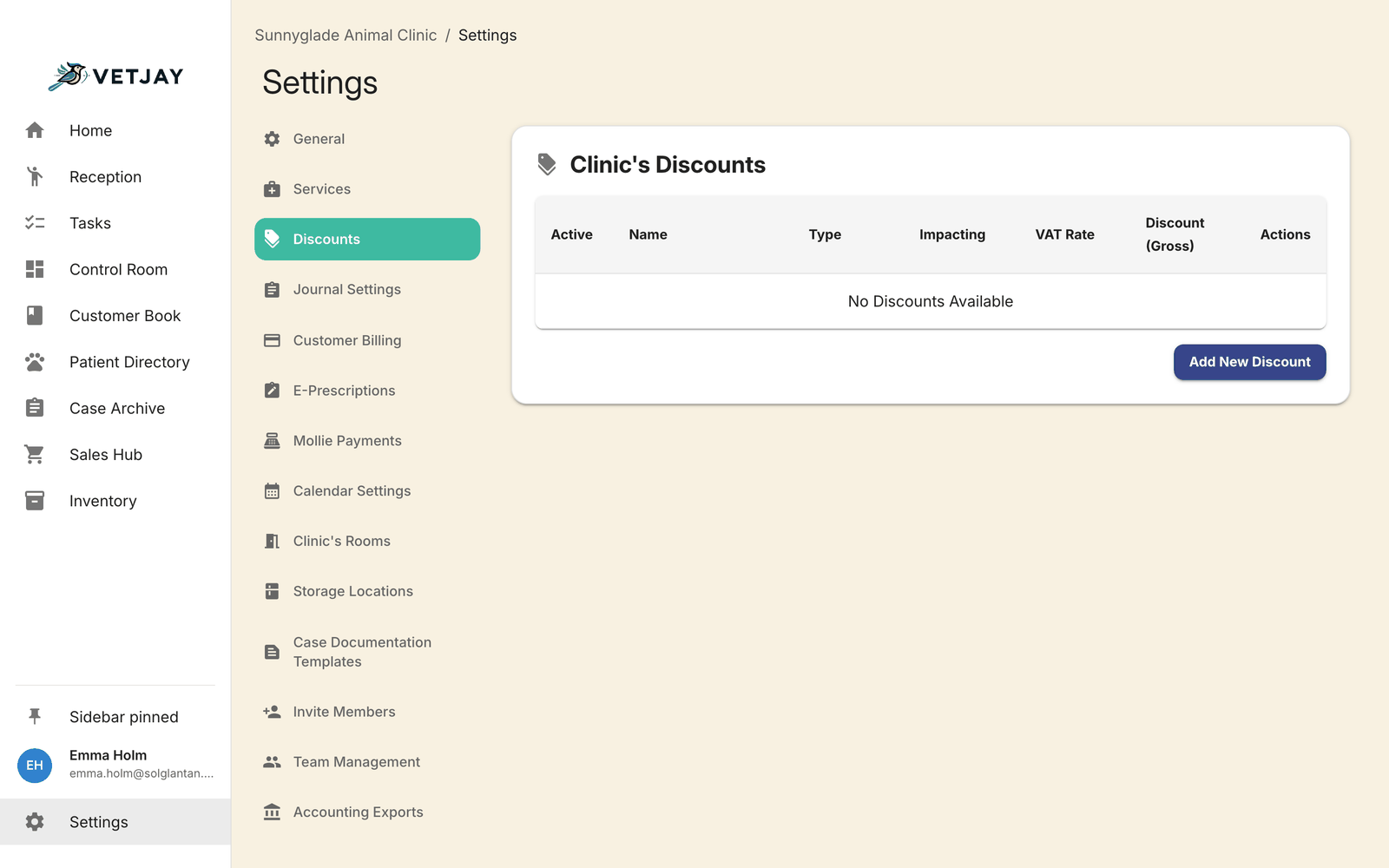
Add a discount
- Go to Settings → Discounts.
- Click Add New Discount.
- Fill in:
- Discount Name. It shows on the invoice.
- Discount Type: Percentage or Fixed Amount.
- Discount Impacting: Per Item (selected lines) or Whole Bill.
- The value. A percentage can be at most 100%. A fixed amount is entered including VAT and needs a Tax Rate.
- Valid: whether the discount can be chosen.
- Click Save Discount.
Change or delete
The list shows Name, Type, Discount (Gross), VAT Rate, Impacting and Active. Click a discount to change it, or delete it under Actions. Invoices where the discount was already used don't change.
On the invoice
How to add a discount to an invoice, and what applies when item and bill discounts are mixed, is described in Items, discounts & surcharges.
FAQ
Can a discount be tied to a specific customer? No. Discounts are shared and chosen on the invoice.
Why can't I put a fixed amount on several lines? A fixed amount needs the selected lines to have the same VAT rate. Choose lines with the same VAT, or use a percentage discount.