Reception & Reception Center
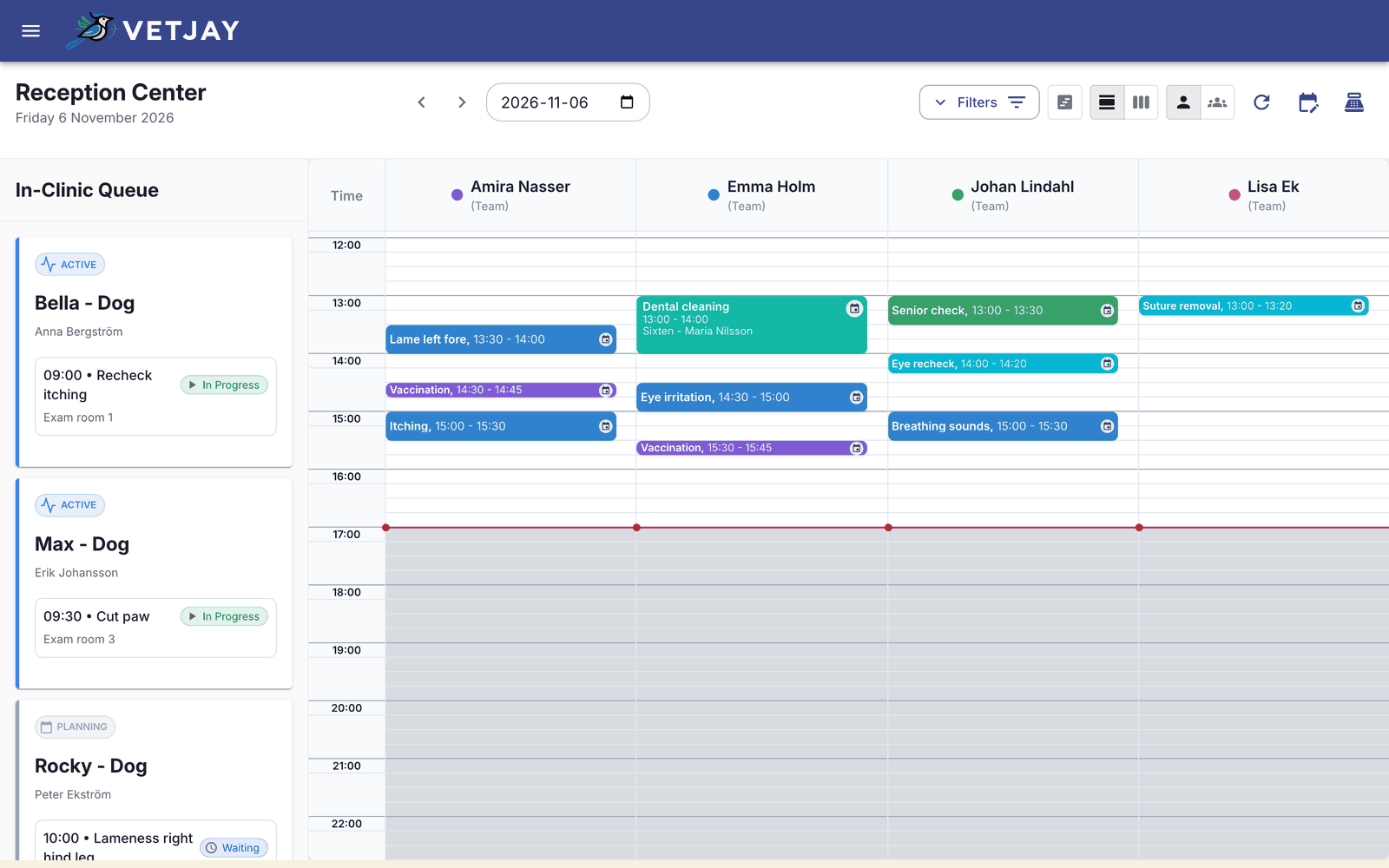
Reception in the sidebar opens Reception Center. Here you see today's appointments, which patients are at the clinic and new requests from online booking. The page requires booking permission and isn't shown on mobile (narrower than 768 px).
Interactive guide
Start the guide
Try it step by step in a copy of VetJay. Nothing you do there affects your clinic.
New here?
Follow Guide: using Reception for a walkthrough with videos.
Layout
- Left: the In-Clinic Queue with today's patients, grouped by status. If the clinic uses triage for online booking, requests show here too.
- Centre: the calendar.
- Right: the details panel for the booking you clicked. Close it with the cross when you want more room for the calendar.
Calendar views
The buttons at the top right control what the calendar shows:
| Button | Shows |
|---|---|
| Timeline | The day as a list over time |
| Day | The selected day |
| Week | The whole week |
| Single View | One column per team member or room, side by side |
| Consolidated View | All bookings in one calendar |
Single View and Consolidated View work for both Day and Week. VetJay remembers the view you chose last.
Change the day with the arrows or the date field. Today takes you back to today. Refresh reloads the bookings.
Working hours and absences are drawn per person. Time outside working hours is grey, and absences are hatched. When someone changes a schedule it shows right away, without reloading. See Calendar & rooms.
Filters
Click Filters to show:
- The search field. Search by patient, customer, phone, email, appointment title or booking code.
- Appointment Type.
- Rooms and Team Members. Choose which columns to show, or All and None.
How you work
- Click Book Appointment (the calendar icon) or a free time to book. See Book an appointment.
- Click a booking to open the details panel. It shows the booking details and quick actions, such as opening the journal, going to billing or taking payment.
- When the patient arrives, register the weight under Today's Weight in the panel:
- Save Weight only saves the weight. Then set Waiting under Update Appointment Status while the patient is in the waiting room.
- Save & In Progress saves the weight and sets the appointment to In Progress, when the visit starts right away.
- Drag a booking to a new time in Day or Week to move it.
- Quick Sale (the till icon) creates a bill without a booking.
In-clinic queue
The queue shows the patients with appointments today, from planned to completed. See Managing the in-clinic queue for how the statuses work.
Requests from online booking
If the clinic has Allow triage requests turned on, incoming requests show in the left column. Pick one up with Start, leave it with Release, or Take Over a colleague's. See Triage queue.
FAQ
What is the difference between the calendar and the in-clinic queue? The calendar shows the times. The queue shows where each patient is in their visit right now.
Can I see several days at once? Yes, with Week.
Why can't I see Reception on my phone? Reception Center needs a wider screen. Use a computer or tablet. Home works on mobile.