Guide: journaling from Home
This guide is for vets who write journals but don't book appointments. Everything you need starts on the Home page. There you add the customer, the patient and the consultation. From there you write the journal and send e-prescriptions, consultations and referrals.
Interactive guide
Start the guide
Try it step by step in a copy of VetJay. Nothing you do there affects your clinic.
Case and consultation
On Home the button is called + Case. What you create is a consultation, and every consultation is listed under Case Archive in the sidebar.
1. Add the customer
Is the customer already in VetJay? Go straight to step 2.
- Click + Customer at the top right of Home. The customer book opens with the form for a new customer.
- Choose private person or company.
- Fill in name, surname and phone number. Address, Postal Code and City are required too. In Sweden you can fetch name and address from the personal identity number with SPAR lookup.
- Click Save Customer.
2. Add the patient
- Go back to Home and click + Patient.
- In Select Owners, search for the customer and press Enter. Tick the customer and click Next.
- Fill in Patient Name, Species and Breed. Breed is required. Add the sex, date of birth and microchip number if you have them.
- Click Save Patient.
More about the fields in Add & edit a patient.
3. Create the consultation
- Go back to Home and click + Case.
- In Select Patient, search for the patient and press Enter. Tick the patient and click Next.
The consultation is created and opens right away. No appointment is needed.
4. Write the journal
- Enter a Title at the top and choose the Type.
- Write the journal text in the writing field. Quick Templates has the clinic's templates for the consultation's type.
- Click Publish.
You can publish several times during the visit. Everything you publish shows in the consultation's thread. The consultation locks automatically after a set number of days, see Lifecycle & auto-lock.
The tools are on the right. Journal History shows the patient's earlier consultations next to the one you're writing, and Attachments uploads pictures and files. See Writing the journal and Attachments & PDFs.
5. Write an e-prescription
- Click E-Prescriptions in the tools.
- If the patient has several owners, choose who the prescription is for and click Continue.
- VETiSearch opens with owner and patient filled in. Prescribe the medicine there.
The prescription is saved on the consultation and included in the journal PDF. To use e-prescriptions the clinic needs VETiSearch connected, and you need a licence number on your profile. Hover over the tool to see what's missing. E-prescriptions are available for clinics in Sweden. See E-prescriptions.
6. Send the consultation
- Click Send consultation in the tools.
- Choose Send to Customer for the owner, or Send to New Email Address for someone else.
- Click Send.
The recipient gets the consultation's journal as a PDF.
7. Send a referral
- Click Sent records in the tools.
- Choose Referral at the top.
- Fill in Provider Name, Provider Email and Referral Reason. Organisation and clinical notes are optional.
- Under Case documents & attachments, choose which consultations and files to include.
- Click Save and Send.
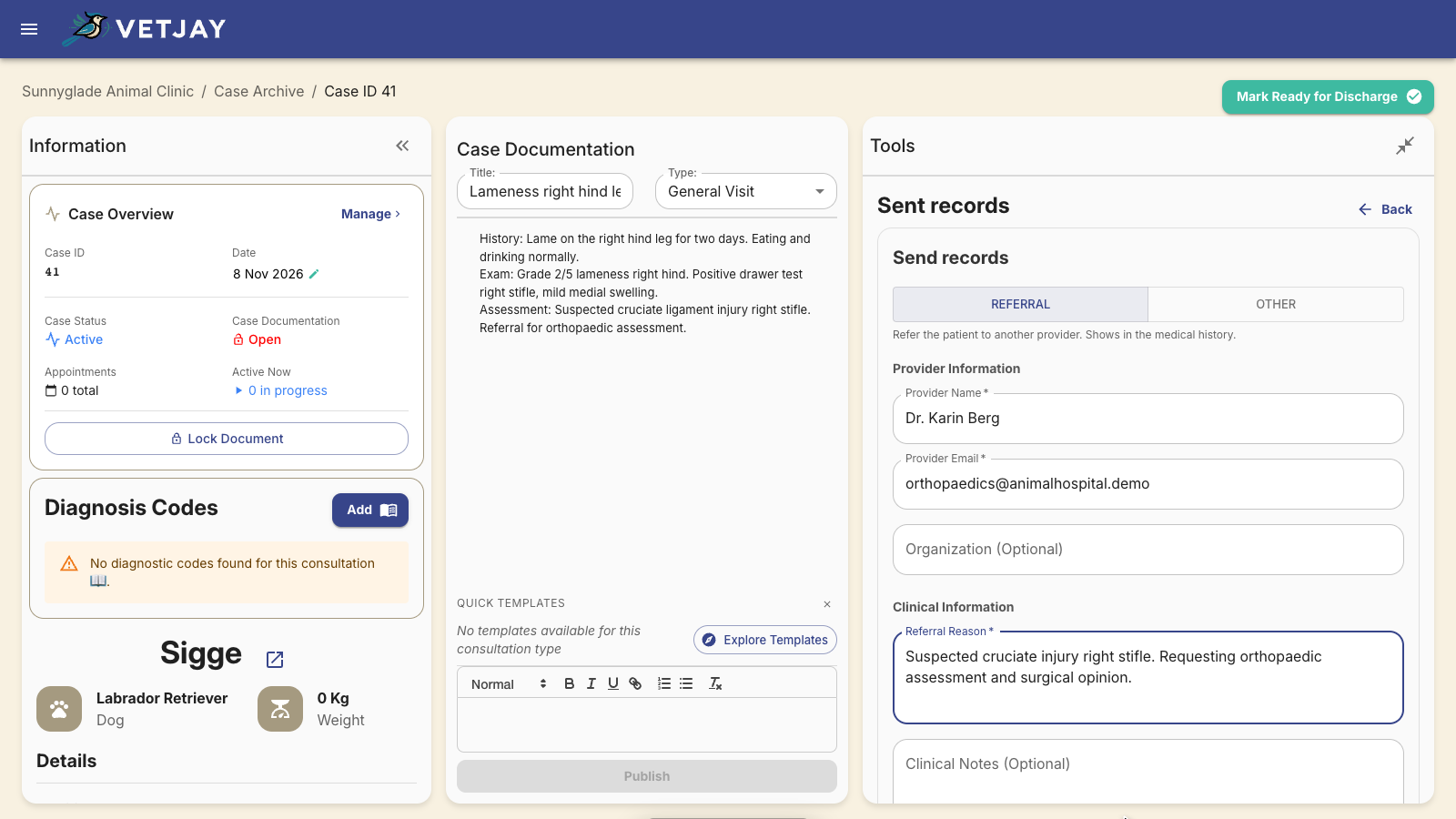
Everything sent is listed in the tool and on the patient profile's Sent records tab. To send a journal copy to someone who isn't a provider, such as an insurer, choose Other instead. See Referrals and sent records.
8. Find all consultations
Click Case Archive in the sidebar. It lists every consultation at the clinic.
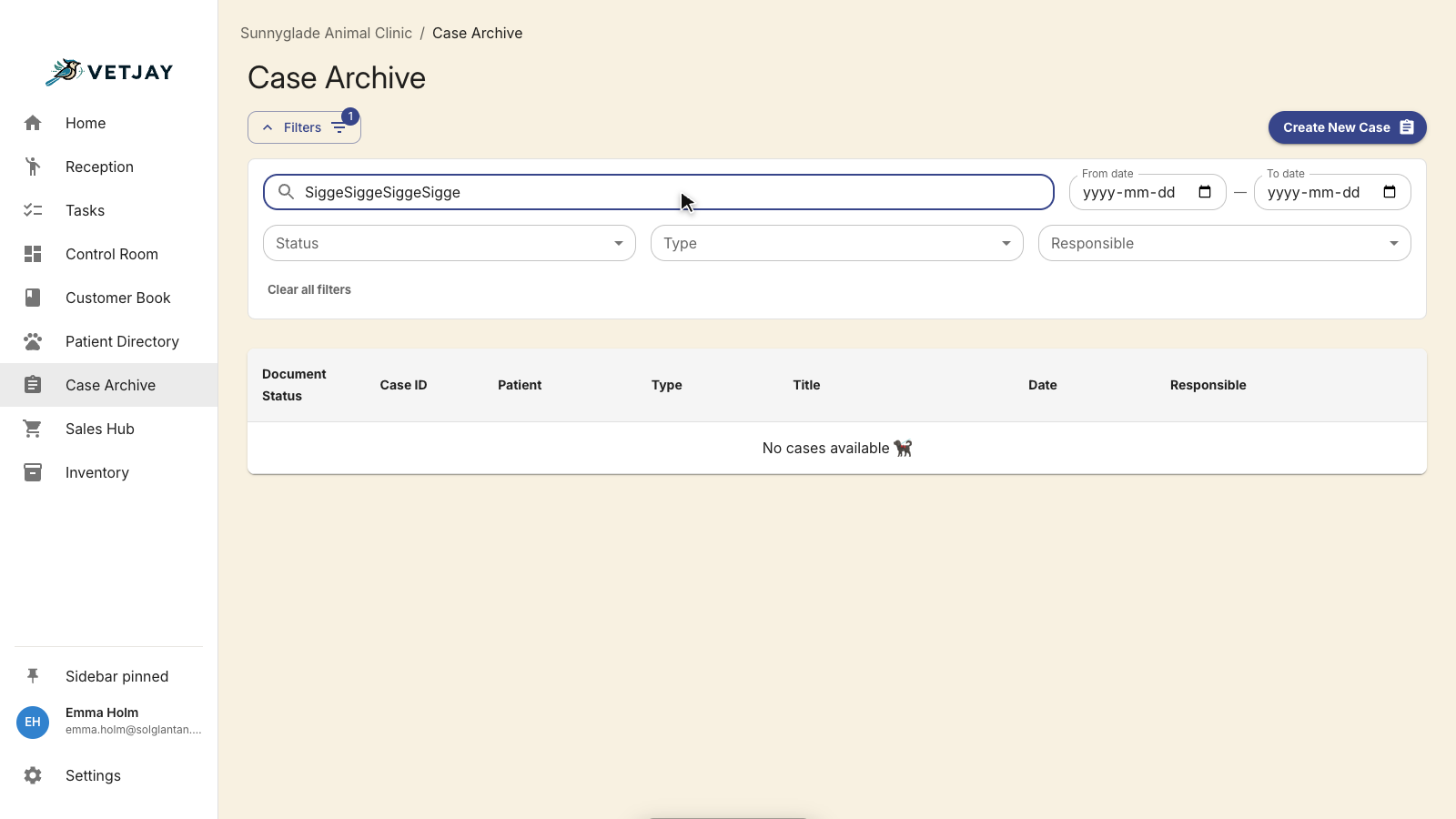
- Search by case ID, patient name or title.
- Filter by Responsible to see only your own, or by Status and date.
- Click a row to open the consultation.
You can also see all of a patient's consultations in the Patient Directory, on the patient profile. See Case Archive – list & filters.
FAQ
Do I have to book an appointment to write a journal? No. + Case creates a consultation without an appointment.
Where do I see what needs doing? On Home, under the items that need attention. They include unlocked documents and cases without an invoice. See Home & agenda.
How do I charge for the visit? With the Case's Bills tool in the consultation. See Create invoice.
More in the guide
Those are the basics. The rest of the guide covers everything above in more detail:
- Create a case: every tool in the consultation
- Writing the journal: templates, dictation and history
- Diagnosis codes
- Attachments & PDFs
- E-prescriptions
- Referrals and sent records
- Lifecycle & auto-lock
- Customer book and Patient Directory