Guide: using Reception
This guide walks through a day at reception: how to read the view, book, move appointments and receive patients when they arrive. Each step has a short video.
Interactive guide
Start the guide
Try it step by step in a copy of VetJay. Nothing you do there affects your clinic.
Click Reception in the sidebar to open Reception Center. The page requires booking permission and works on a computer or tablet.
1. Get to know the view
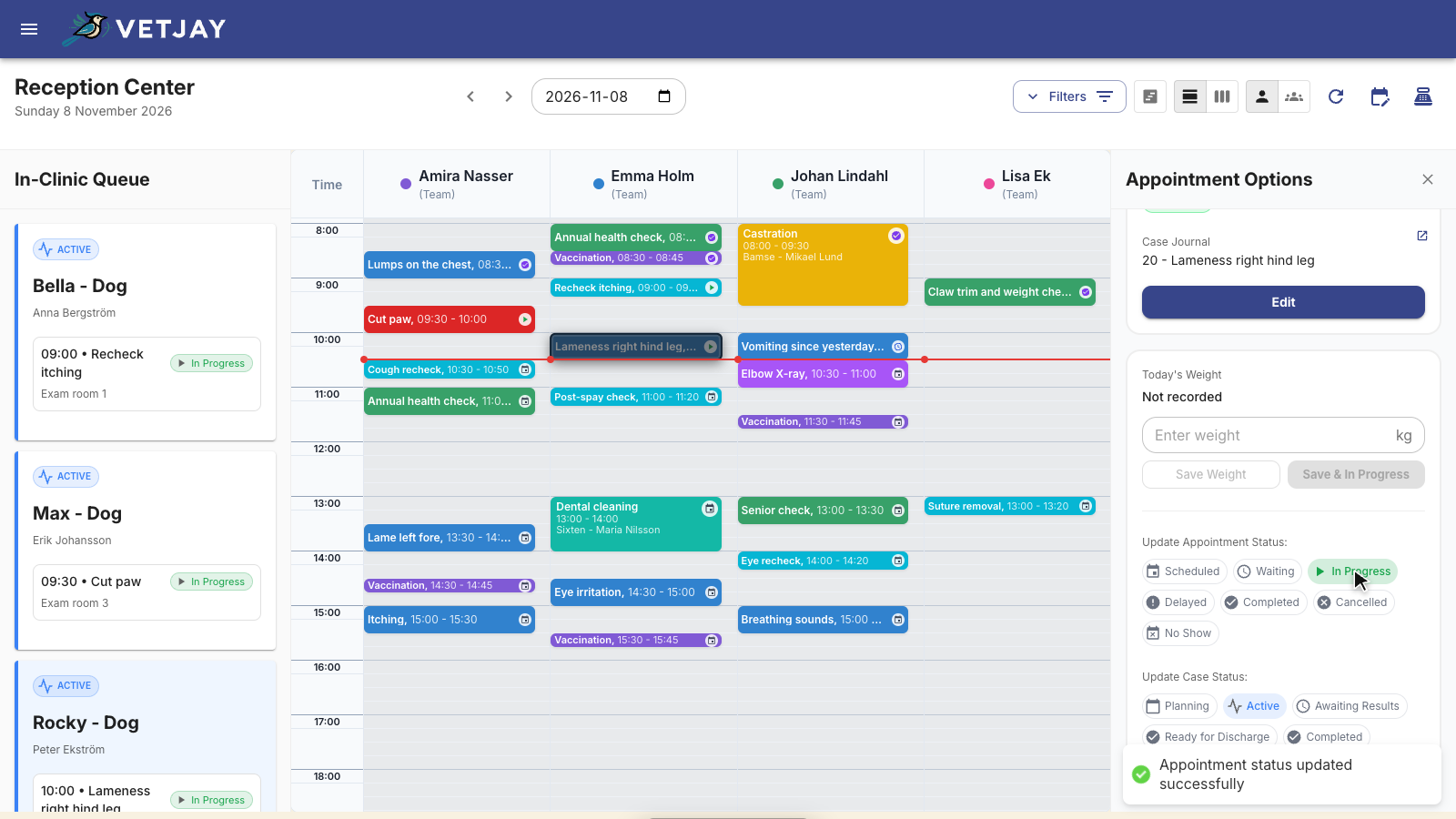
Reception Center has three parts:
| Part | Shows |
|---|---|
| In-Clinic Queue (left) | Today's patients, grouped by status |
| Calendar (centre) | The appointments, one column per team member or room |
| Details panel (right) | The appointment you clicked, with status, weight and quick actions |
Choose the view with the buttons at the top right:
- Day or Week for how long a period to show.
- Timeline for the day as a list over time.
- Single View for one column per person or room, or Consolidated View for all appointments in one calendar.
Click Filters to search for an appointment or choose which team members and rooms to show. All shows everyone again. VetJay remembers the view you chose last.
2. Book an appointment
- Click a free time in the right column. Time and vet are filled in automatically.
- Choose customer and patient. If the customer is new, add them straight from the form.
- Fill in the title and appointment type.
- Click Book Case.
The appointment shows in the calendar and in the queue. See Book an appointment.
3. Move an appointment or change vet
- New time: drag the appointment to the new time in Day or Week. Choose Reschedule & notify to tell the customer, or Reschedule only.
- New vet: open the appointment, click Edit and change the person under Clinical Staff.
4. Receive the patient
- Click the appointment. The details panel opens.
- Enter the weight under Today's Weight.
- Choose how the visit continues:
- The patient sits in the waiting room: click Save Weight and set Waiting under Update Appointment Status.
- The patient goes straight in: click Save & In Progress. The weight is saved and the appointment becomes In Progress.
The patient moves in the queue by status, so everyone sees who's waiting and who's in.
5. Follow the visit to the end
- When the vet takes the patient in, set In Progress under Update Appointment Status.
- If needed, change the case status, for example to ready for discharge when the patient can go home.
- When the visit is done, set it to completed and take payment from the quick actions in the panel.
If someone pays without an appointment, for example for food, use Quick Sale (the till icon). See In-clinic queue for all statuses.
FAQ
Why can't I see Reception on my phone? Reception Center needs a wider screen. Use a computer or tablet. Home works on mobile.
Where do requests from online booking show up? In the left column, if the clinic has triage turned on. See Triage queue.
Can the customer get a reminder before the visit? Yes, by SMS. See SMS reminders.