Open extra hours for online booking (one-off)
You can open online booking on a single day at times that are normally closed, for example a Saturday morning or a late evening. The change applies to that date only. It does not repeat, and the regular schedule is not affected.
You do it in the person's calendar by adding specific hours for the day. Customers see the times as ordinary free slots in online booking.
Before you start
- You need permission to manage calendar settings. Changing someone else's calendar also requires permission to manage staff or clinic settings.
- Online Booking must be enabled for the clinic (Settings → Calendar Settings → Online Booking).
- The person must be Bookable online and work with the appointment types and species that should be bookable (the My Calendar tab).
Step by step
- Go to Settings → Calendar Settings.
- Open the Team Calendar tab. Without permission to manage staff or clinic settings the tab is called My Calendar and applies to yourself.
- Choose the vet under Person and click Open Calendar.
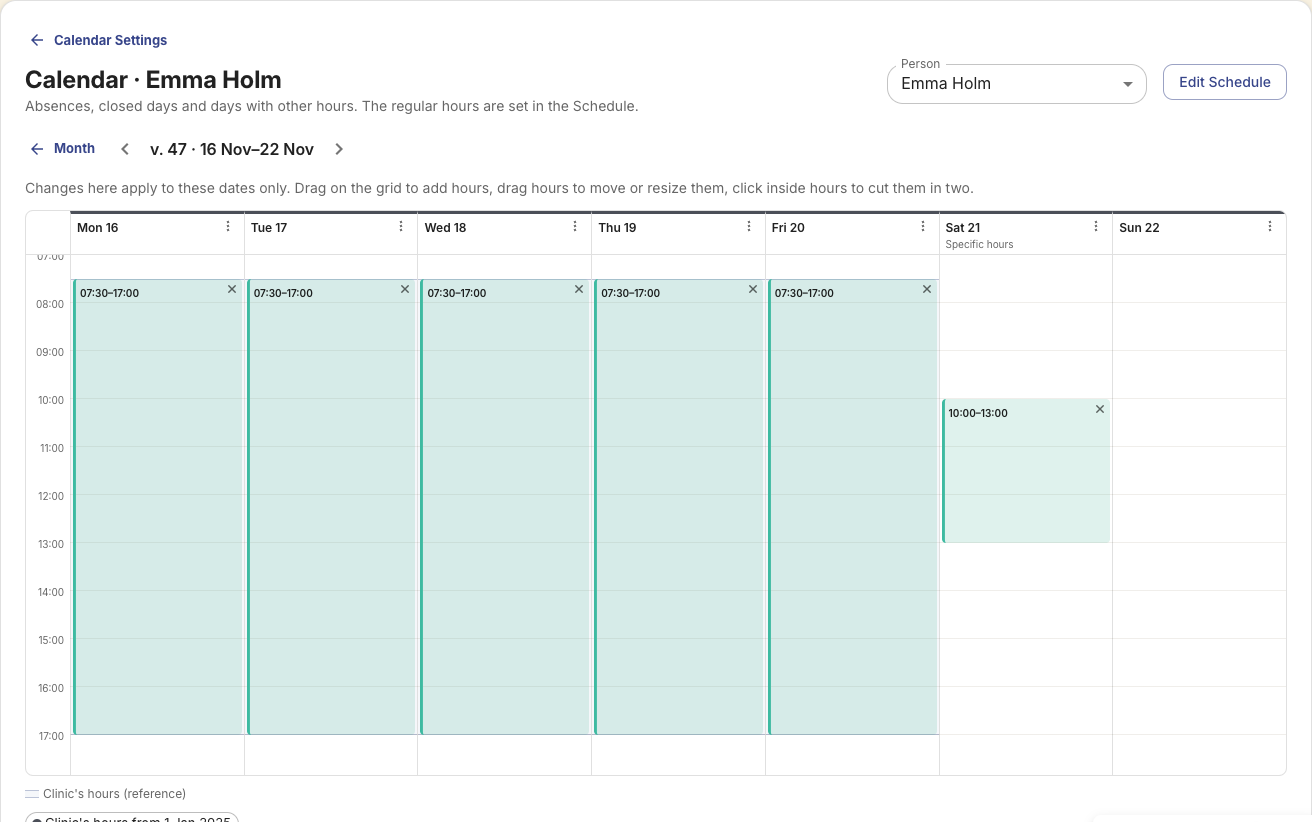
- Go to the right month and click the day. The week view opens with the text Changes here apply to these dates only.
- Drag on the grid for that day to add hours, for example 10:00–13:00. To extend an existing day, drag the edge of the hours.
- The day is labelled Changed and the bottom bar shows 1 day changed. Click Save.
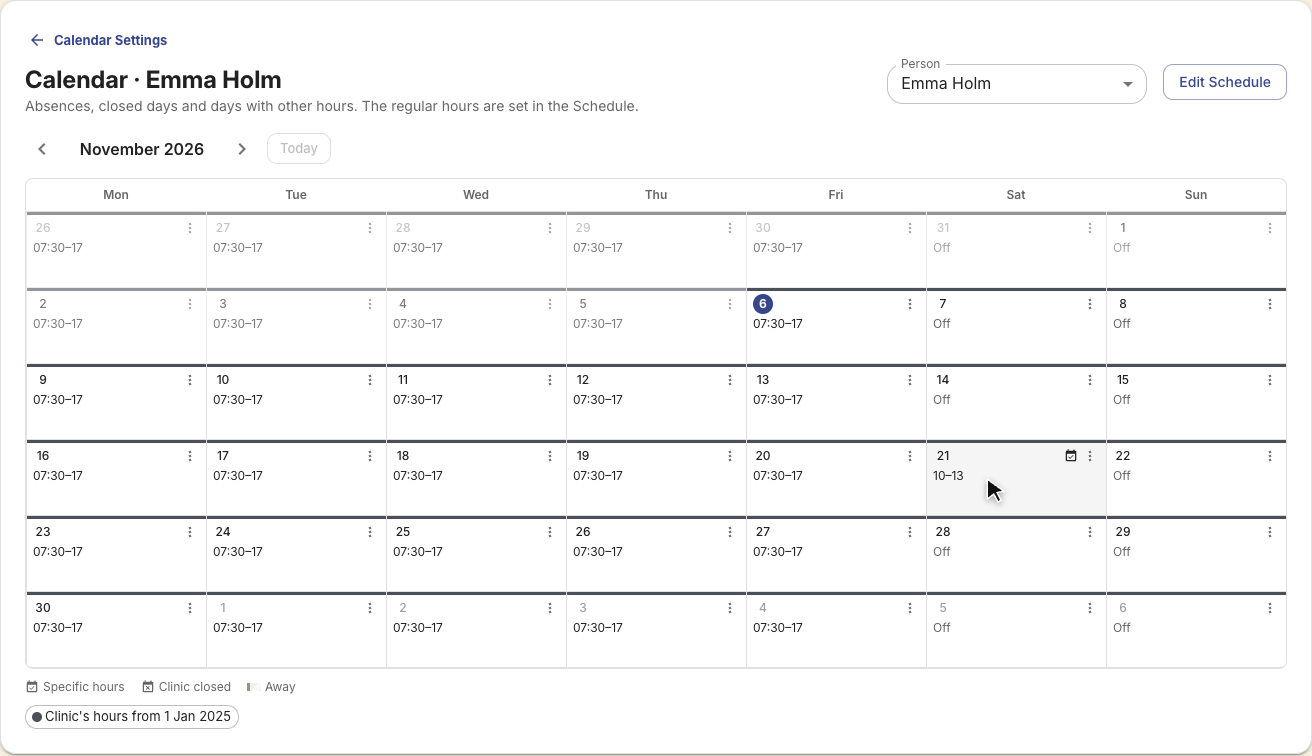
In the month view the day now shows the Specific hours marker. The hours are bookable online right away, under the same rules as other hours.
For the whole clinic?
If everyone who follows the clinic's hours should be bookable that day, choose the clinic instead of a person and do the same in the clinic's calendar (the Working Hours tab → Open Calendar). People with their own hours are not affected.
Remove the hours again
- Open the calendar and click the day.
- Open the day's menu (⋮) and choose Back to Regular Hours.
- Click Save.
Bookings already made stay in place. Move or cancel them in the calendar if needed.
If the hours don't show up in online booking
- Closed day: A day in Closed Days (or Close the Clinic This Day) stops all booking, specific hours included. Choose Reopen the Clinic This Day in the day's menu first. Bank holidays are managed under Closed Days.
- No opening hours is not the same as closed. A day without opening hours (a weekend, say) can be opened with specific hours.
- Booking rules: If the appointment type has a time window, for example vaccination only 08–10, the whole visit must fit inside it.
- Minimum lead time: Slots too close to now are not shown.
- Rooms, absences and existing bookings: Types that require a room need a free room. Absences and booked time are subtracted.
See the full checklist in Booking settings & rules.
FAQ
Does it repeat? No. Specific hours apply only to the dates you change. For hours that should come back every week, or for example every other Saturday, use Edit Schedule (weekly hours, rotation or day rules).
Does the customer see a difference? No. The hours appear as ordinary free slots in online booking.
Can I open several days at once? Yes. Change several days in the week view before saving, and the bar shows for example 3 days changed.
Can staff book the hours internally too? Yes. Specific hours are working time for the person, for both internal and online booking.