Writing the journal
The journal text is written in the centre column, Case Documentation. It's a thread of entries: each time you click Publish a new entry is added, with who wrote it and when.
Interactive guide
Start the guide
Try it step by step in a copy of VetJay. Nothing you do there affects your clinic.
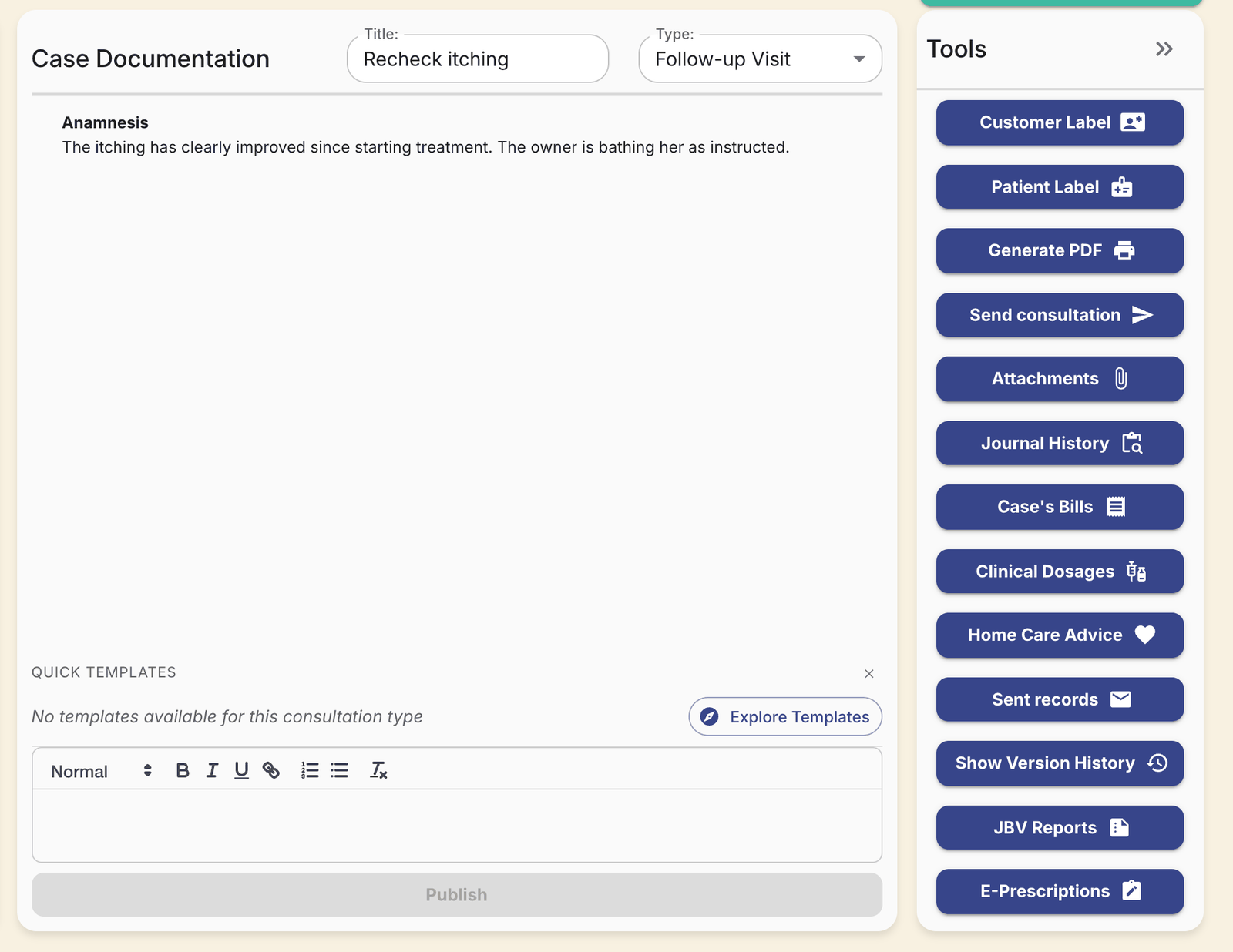
Write and publish
- Open the consultation.
- Type in the field at the bottom. Use headings, bold and lists from the toolbar.
- Click Publish. The entry is added to the thread and shows right away for colleagues who have the case open.
What you type is saved as a draft in the browser until you publish. If you reload the page the draft comes back, with the message Draft restored. The draft only exists in that browser, so publish before you switch computers.
Quick templates
Under Quick Templates above the writing field you'll see templates for the consultation's type. Click one to fill the writing field with it. Explore Templates shows all templates. Templates are created under Case Documentation Templates.
See the patient's history alongside
Click Journal History in the tools. The patient's earlier consultations open next to the one you're writing, so you can read what was done last time without leaving the case. Search titles, entries, codes, advice, products, files and prescriptions, or filter by type, diagnosis code and date.
Edit or delete an entry
Open the entry's menu to edit or delete it. While you edit, You are editing: … shows above the writing field. Changes are saved as a new version, and earlier versions show under Show Version History.
A locked consultation can't be changed. Unlock it first, see Lifecycle & auto-lock.
On mobile
The journal works in the phone's browser:
- Dictate: tap in the writing field and use the microphone on the keyboard (Siri or Google). The text appears as you speak. Click Publish when you're done.
- Upload pictures: open Attachments, tap Upload Files and choose to take a photo or pick one from the photo library. The picture goes straight onto the case, without going through a computer.
Diagnoses and dosages
- Diagnoses are added under Diagnosis Codes in the left column. See Diagnosis codes.
- Medicines and consumables given during the visit are recorded in Clinical Dosages. A dosage starts as a Draft. Confirm takes it from stock, and Reverse puts it back.
FAQ
Is the text saved before I publish? Yes, as a draft in your browser. Colleagues don't see it and it isn't part of the journal until you click Publish.
Can several people write in the same consultation at once? Yes. Each publish becomes its own entry, and the thread updates live for everyone with the case open.
When is the consultation locked? Automatically after a number of days the clinic sets. See Lifecycle & auto-lock.