Attachments & PDFs
In the consultation you upload pictures and files, and create the journal as a PDF to print or email.
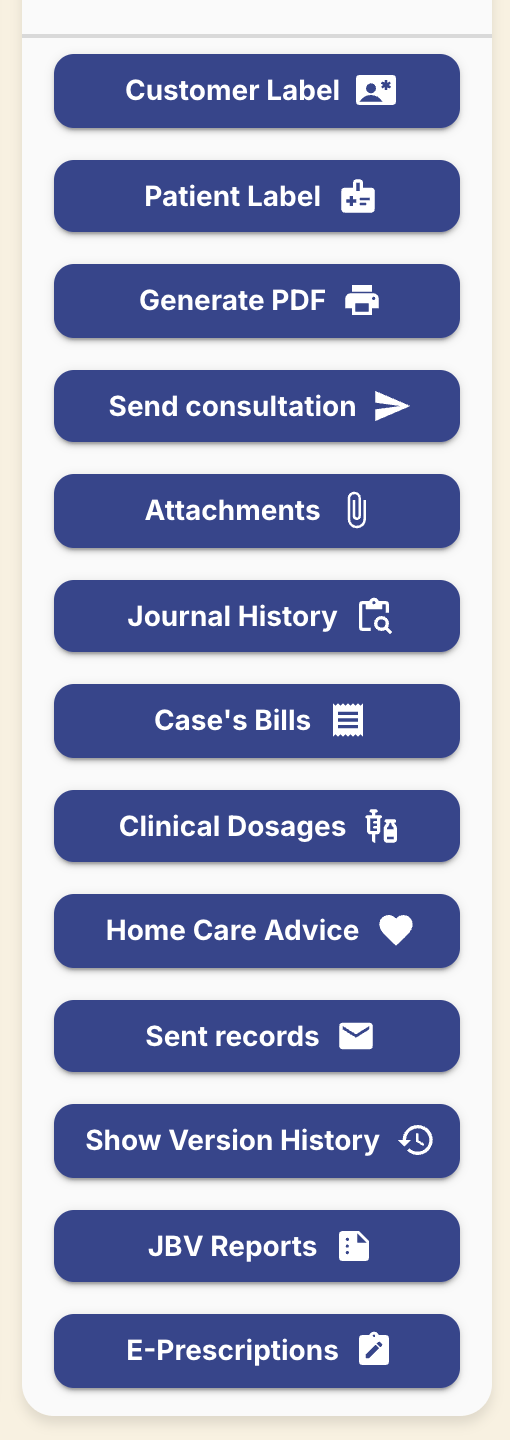
Upload attachments
- Open the consultation and click Attachments in the tools.
- Click Upload Files and choose the files.
- Wait for the upload to finish before you leave the page.
Allowed formats are PDF, JPEG, PNG, HEIC, DOCX and DICOM (.dcm). Each file can be at most 50 MB, and you can upload at most 5 files at a time.
On a phone you can take a photo or pick one from the photo library directly, and it goes onto the case without going through a computer.
Every attachment from the patient's consultations is also collected on the patient profile's Attachments tab.
The journal as a PDF
| Tool | Does |
|---|---|
| Generate PDF | Creates the consultation's journal as a PDF, to print or download. If the patient has several owners you choose which customer it shows |
| Send consultation | Sends the PDF by email. Choose Send to Customer, or Send to New Email Address for someone else |
The PDF contains the journal text, diagnoses and finished e-prescriptions.
To send the patient's whole history, a referral, or choose exactly which cases and files to include, use Sent records instead.
FAQ
Can the customer get a copy of the journal? Yes. Use Send consultation, or send the whole history with Sent records.
Why couldn't a file be uploaded? Check that the file is at most 50 MB and in an allowed format. Upload at most 5 files at a time.